Shopify Real-Time-Pricing configuration
Shopify Config Theme
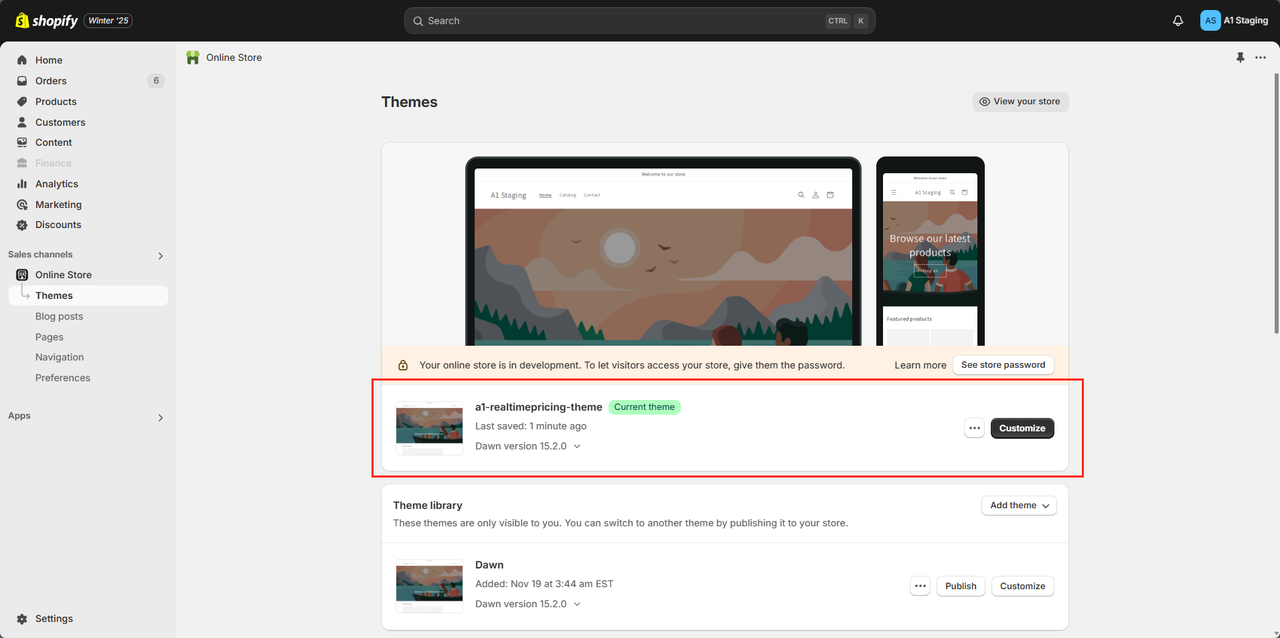
Dawn version 15.2.0
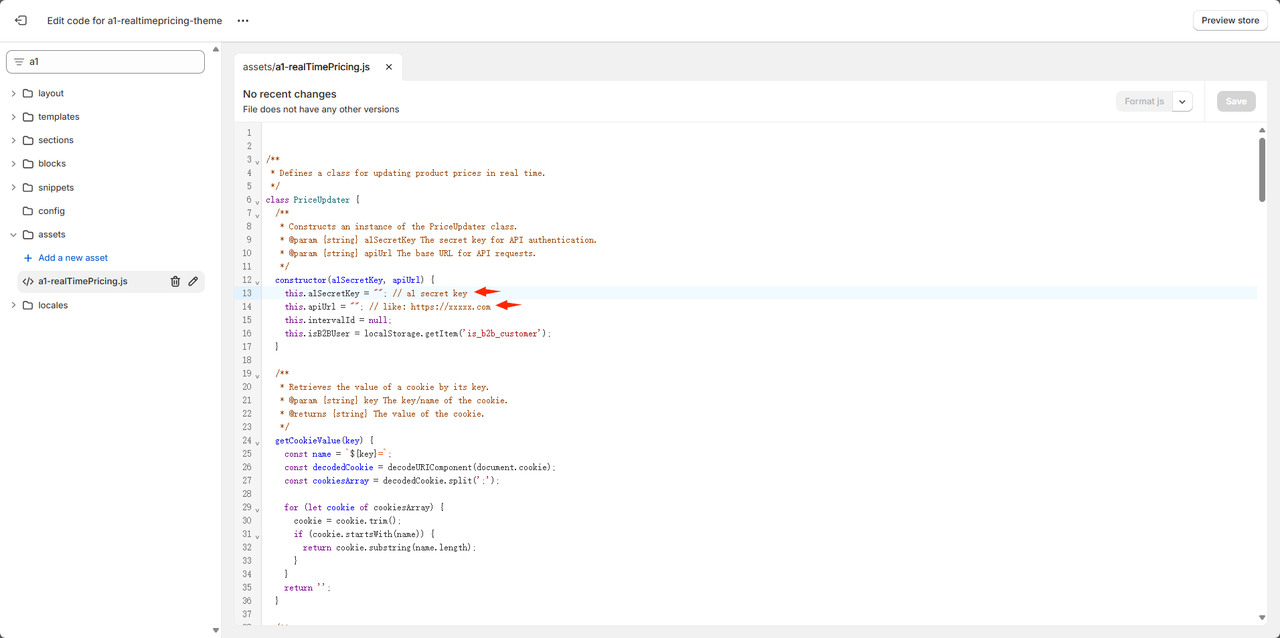
For the config:
- secretKey: The secret key to connect the connection. (Contact our team to get it)
- apiUrl: project store url.
Step
1. Configure the storefront api permission
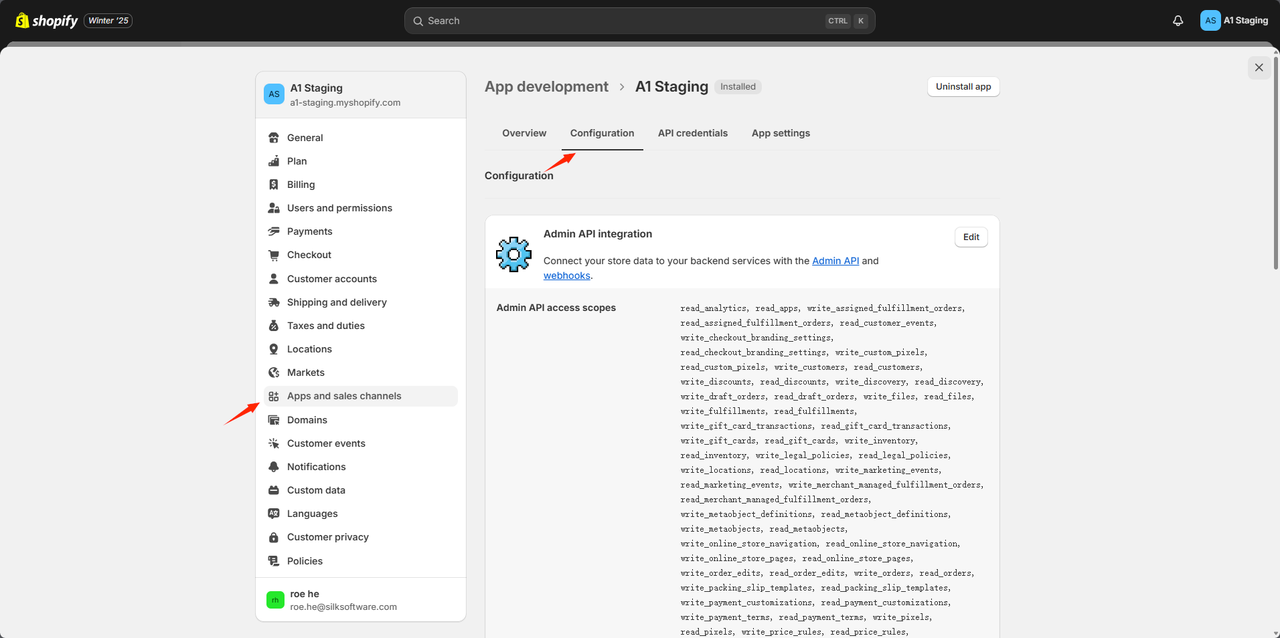
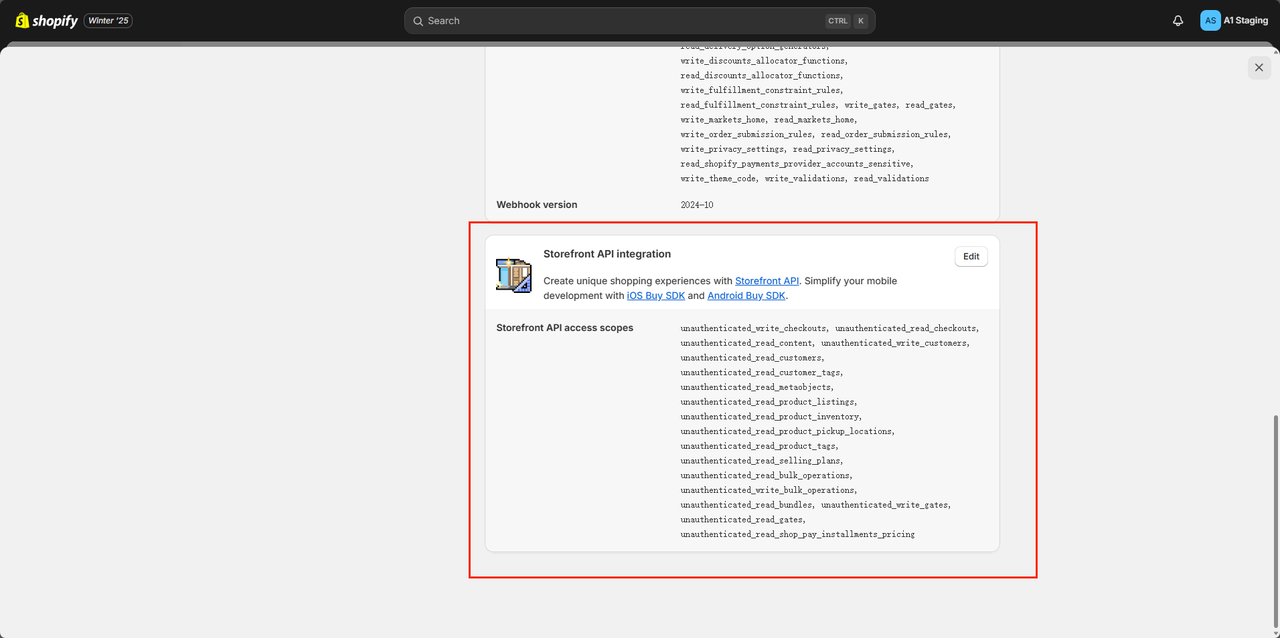
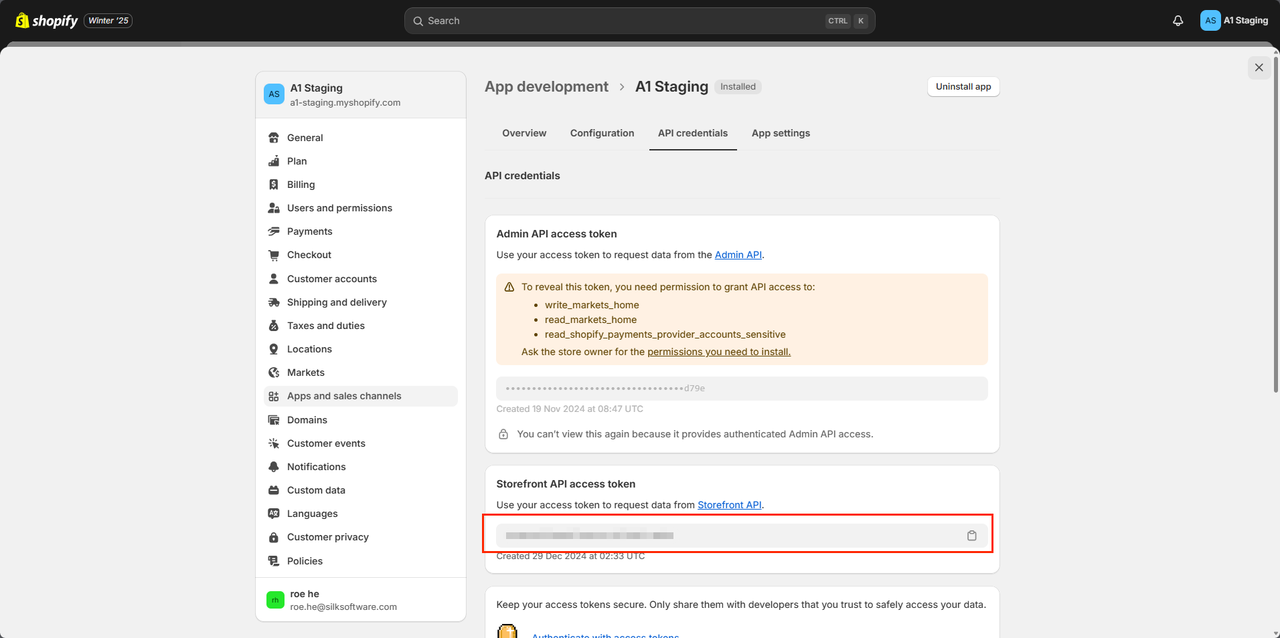
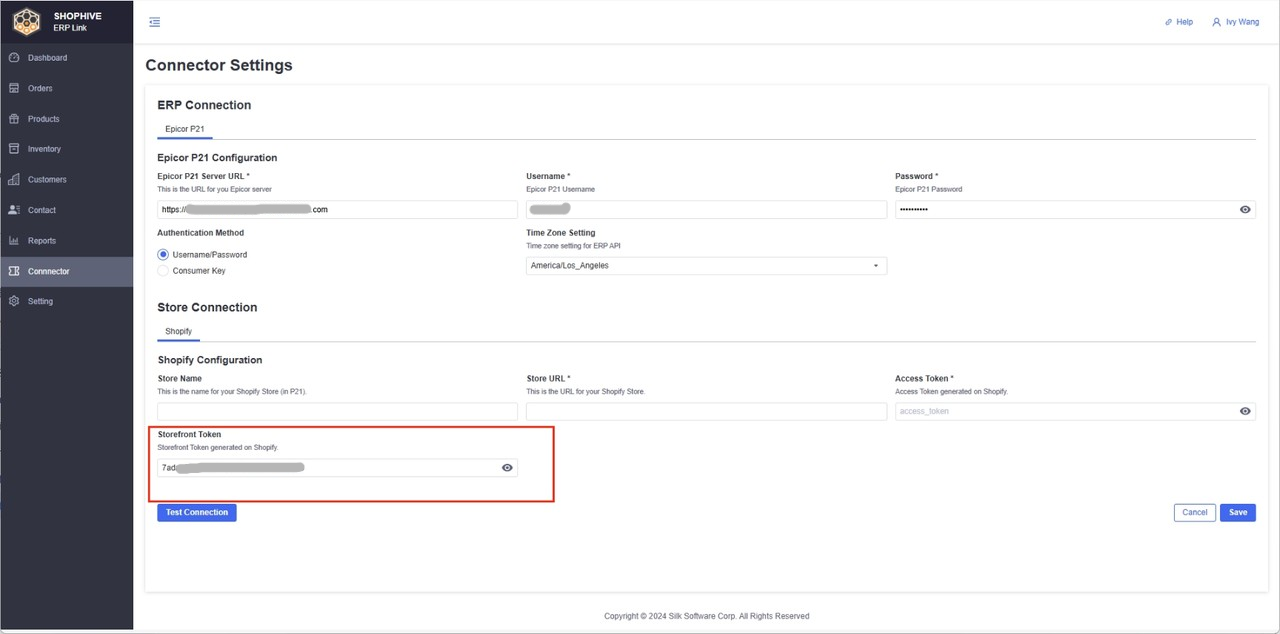
2. Get the store front token and fill it in the Store Connection of A1 connector setting
3. PDP,PLP,Cart Case Setting
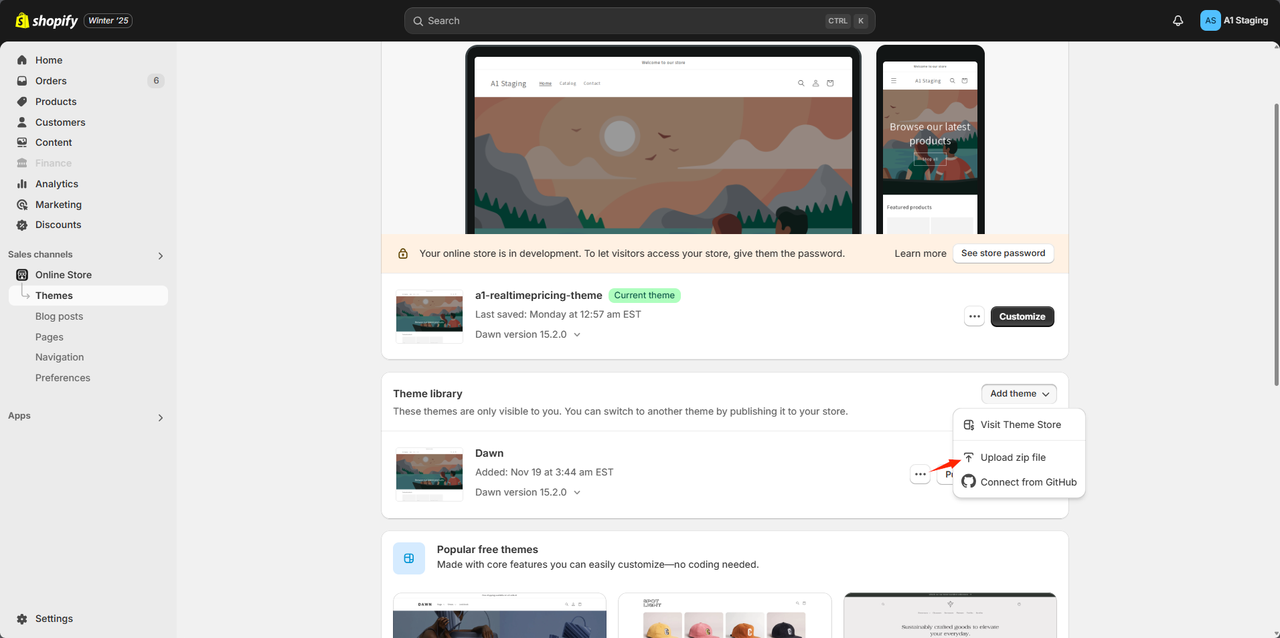
- In the store template, upload our zip file below
📥 Download a1_realTimePricing_theme.zip
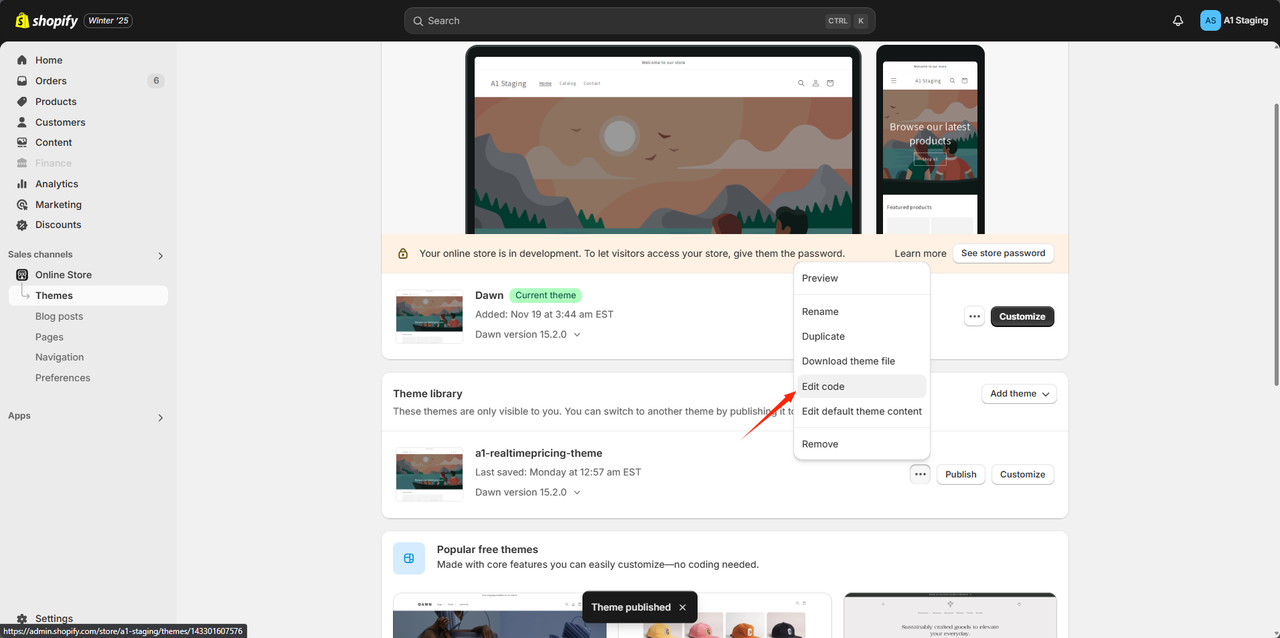
- Edit the template file code, find the a1-realTimePricing.js file, and fill in the file with the corresponding apiUrl and secretKey, and save
- Publish the uploaded template
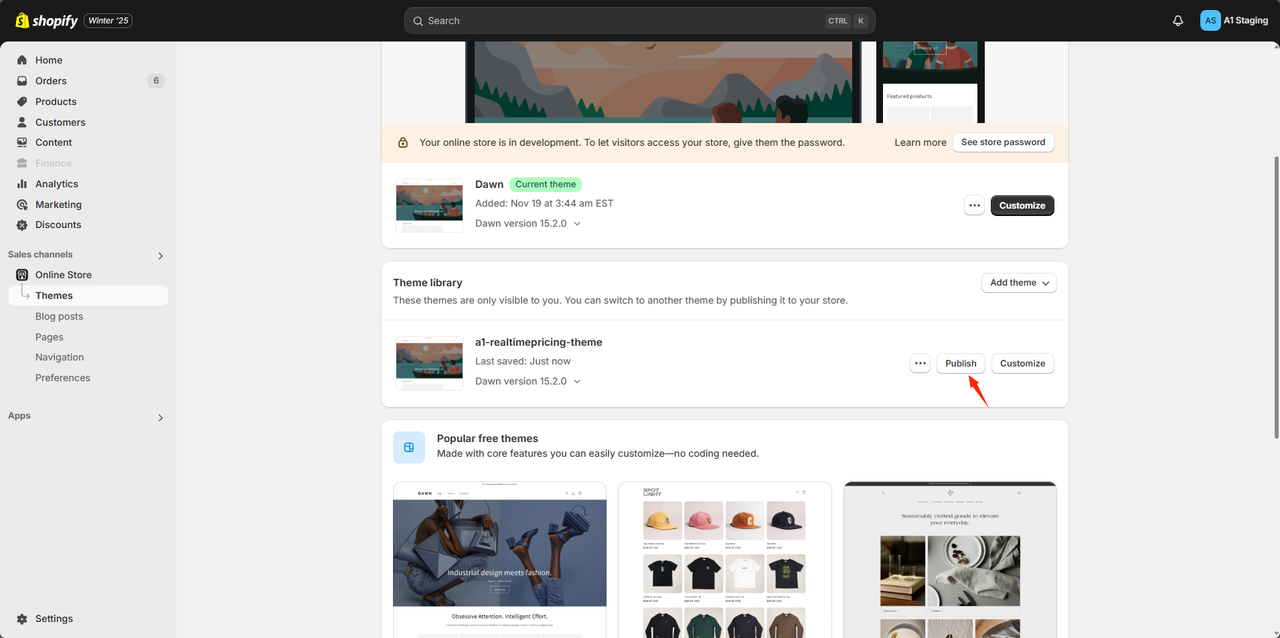
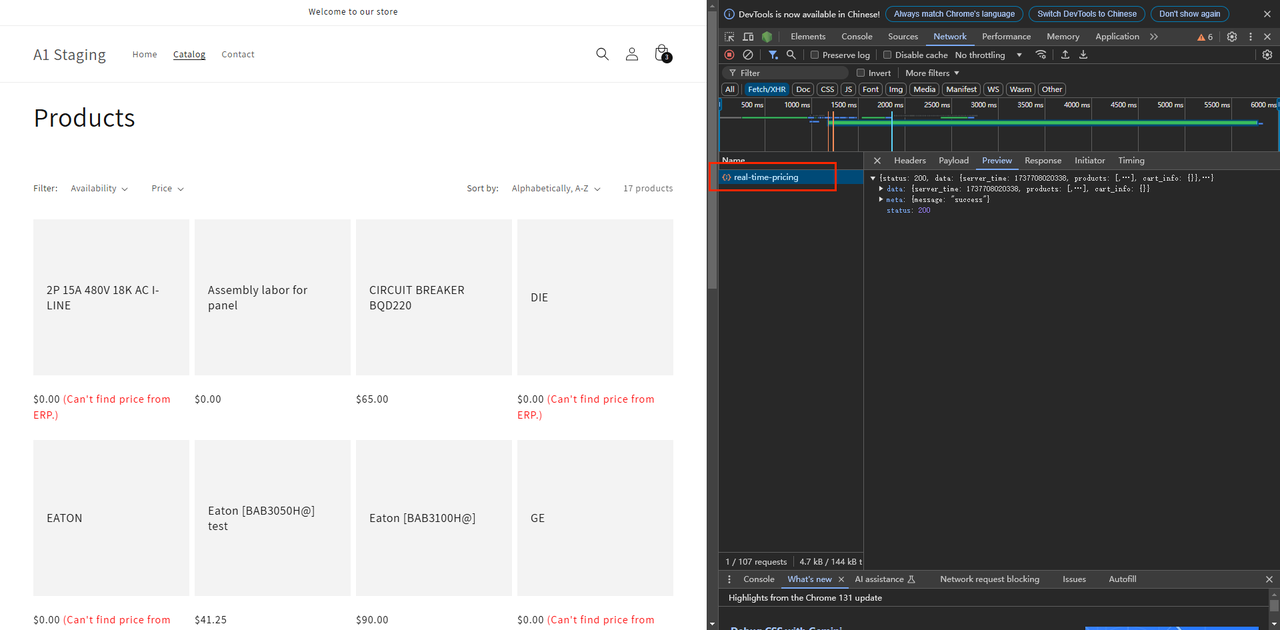
Below is the successful page:
On the store page, click F12, and in the Network column, you can see that a request called real-time price was sent
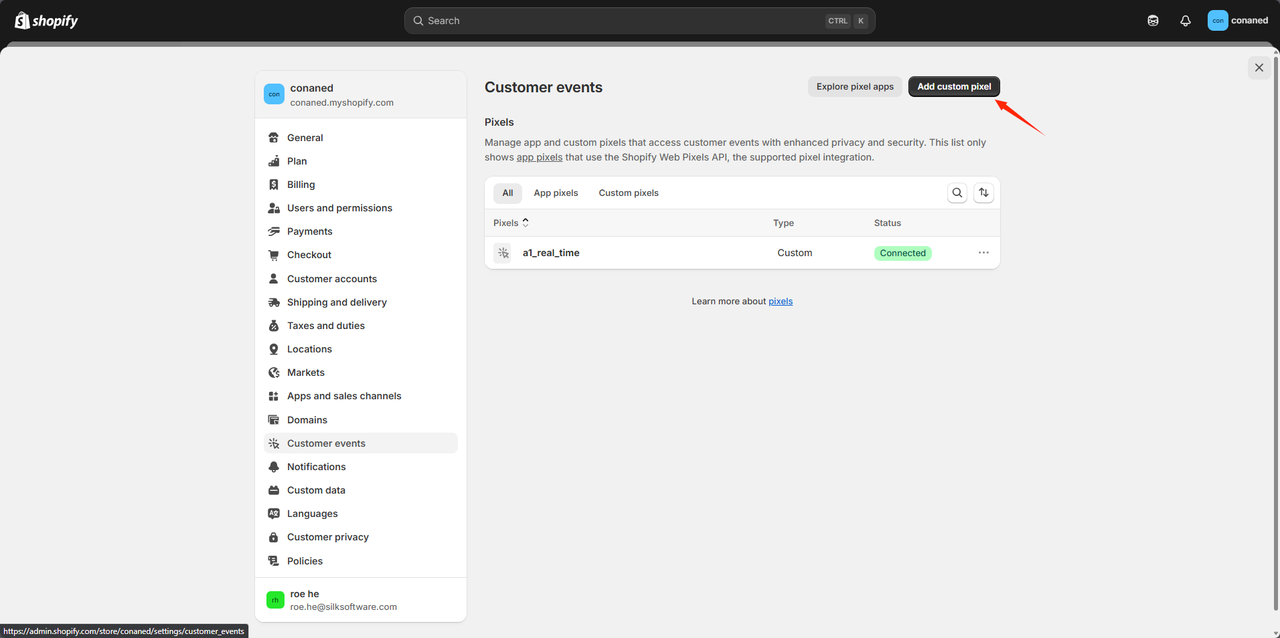
4. Checkout Case Setting
Add custom pixel in "Customer events" of the setting, and input the code as follows, also, input apiUrl and your secretKey.
const secretKey = '';// TODO: input your secretKey
const apiUrl = ''; // TODO: input the base url,like:https://www.xxx.com


/**
 * Retrieves the value of a cookie by its key.
 * @param {string} key The key/name of the cookie.
 * @returns {string} The value of the cookie.
 */
function getCookieValue(key) {
  const name = `${key}=`;
  const decodedCookie = decodeURIComponent(document.cookie);
  const cookiesArray = decodedCookie.split(';');

  for (let cookie of cookiesArray) {
    cookie = cookie.trim();
    if (cookie.startsWith(name)) {
      return cookie.substring(name.length);
    }
  }
  return '';
}

/**
 * Fetches data from the API.
 * @param {string} endpoint The API endpoint to call.
 * @param {Object} body The request body.
 * @param {Function} successCallback The callback function on successful request.
 * @param {Function} errorCallback The callback function on request failure.
 */
async function fetchData(endpoint, body, successCallback, errorCallback) {
  try{
    const res= await fetch(`${apiUrl}${endpoint}`, {
    method: 'POST',
    headers: {
      'Content-Type': 'application/json',
      'a1-secret-key':  secretKey,
    },
    body: JSON.stringify(body),
  })
     if (!response.ok) {
        const errorData = await response.json();
        const errorMessage = errorData.meta ? errorData.meta.message : 'unkown error';
        console.log('Error:', errorMessage);
        errorCallback();
        clearInterval(intervalId)
        return;
    }
     const data = await response.json();
     successCallback(data)
  }catch(error){
       errorCallback();
  }
}

/**
 * Retrieves and updates the prices of products in the checkout.
 */
async function getCheckoutProductPriceList() {
  const currentUrl = window.location.href;
  if(currentUrl?.includes("checkouts")){
   await fetchData(
      '/api/v1/products/real-time-pricing',
      { cart_id: getCookieValue('cart'),  ecommerce_customer_id:getCustomerId(),products:[] },
      (data) => {
      },
      () => {
      }
    );
  }
}

/**
 * Retrieves the customer ID.
 * @returns {string} The customer ID.
 */
function getCustomerId() {
  return localStorage.getItem('customer_id')? 'gid://shopify/Customer/'+localStorage.getItem('customer_id') : "";
}

// Fetches checkout product prices initially
getCheckoutProductPriceList()
// Sets an interval to fetch checkout product prices every 30 seconds
if(window.location.href?.includes("checkouts")){
   const intervalId= setInterval(() => {
     getCheckoutProductPriceList()
  }, 1000 * 30); // Adjust the request interval
}
realTimePricing_theme.zip File Description
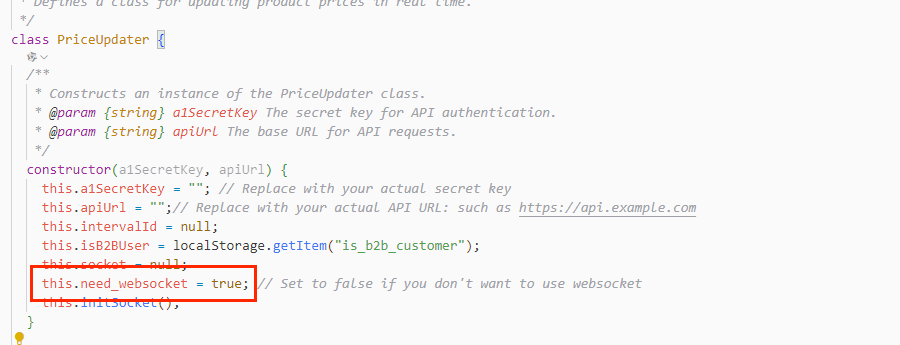
- Add a1-realTimePricing.js file in assets, which is a
PriceUpdaterclass is defined to update product prices in real time. And websocket content is also configured inside.
- Modify code in some template files
footer.liquid
Add code: Store the customer information into the browser's local storage and load an external JavaScript file and import socket.io
<script src="https://cdn.socket.io/4.5.4/socket.io.min.js" defer="defer"></script>
<script>
  localStorage.setItem('company_id', `gid://shopify/Company/`+"{{ customer.current_company.id | default: '' }}");
  localStorage.setItem('is_b2b_customer', "{{ customer.b2b? | default:'' }}");
  localStorage.setItem('customer_id', "{{ customer.id | default:'' }}");
</script>
<script src="{{ 'a1-realTimePricing.js' |  asset_url}}" defer="defer"></script>
price.liquid
Add the data_product_id attribute to the div element of the class named price__container, bind the product id, place the original content in the div of the created class named a1_price_content, and then add the div element for loading
<div class="price__container" data_product_id="{{ product.id }}">
  <div class="a1_price_content">
  <!-- old tempalte html  -->
    </div>
  <!-- loading div  -->
  <div class="loading__spinner hidden">
    <svg xmlns="http://www.w3.org/2000/svg" class="spinner" viewBox="0 0 66 66">
      <circle stroke-width="6" cx="33" cy="33" r="30" fill="none" class="path"></circle>
    </svg>
  </div>
</div>
main-cart-items.liquid
Add the data_varient_id attribute to the element of the class named cart-item and bind the variant id
<tr class="cart-item" id="CartItem-{{ item.index | plus: 1 }}" data_varient_id="{{ item.id }}">
cart.js
After the web page loads, create an instance of PriceUpdater
document.addEventListener('DOMContentLoaded', () => {
  this.priceUpdater = new PriceUpdater();
});
In updateQuantityapproach, after a successful update shopping cart number, will call this.PriceUpdater.GetCartProductPriceList () to retrieve and update the product price in shopping cart.
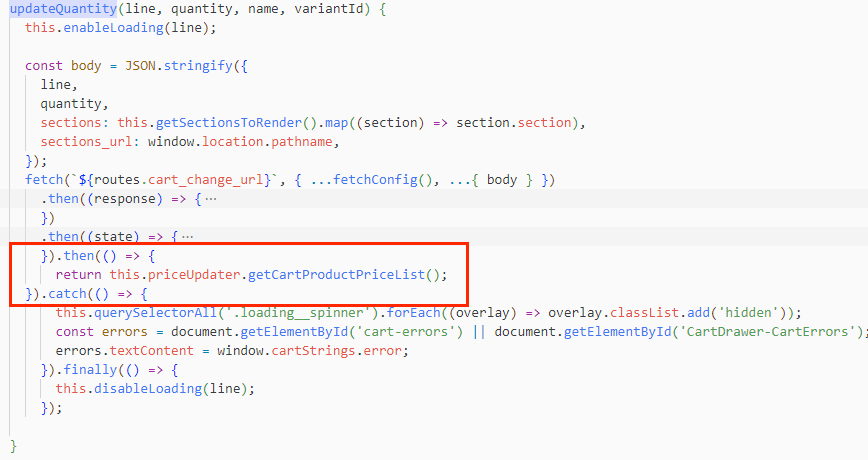
/* ...some code */
.then(() => {
  return this.priceUpdater.getCartProductPriceList();
})